Solution
Let Shopify shoppers try before they buy — no app install
AI clothing try-on integration for Shopify stores means adding a floating try-on button to every product page by pasting one script tag into sections/main-product.liquid, not installing a Shopify App Store app. The snippet reads the product's own image and type through Liquid variables, and shoppers upload their own photo to see themselves wearing the item in about 20 seconds.
AI clothing try-on integration for Shopify stores means adding a floating try-on button to every product page by pasting one script tag into sections/main-product.liquid, not installing a Shopify App Store app. The snippet reads the product's own image and type through Liquid variables, and shoppers upload their own photo to see themselves wearing the item in about 20 seconds.
What you get when you add AI clothing try-on to a Shopify store
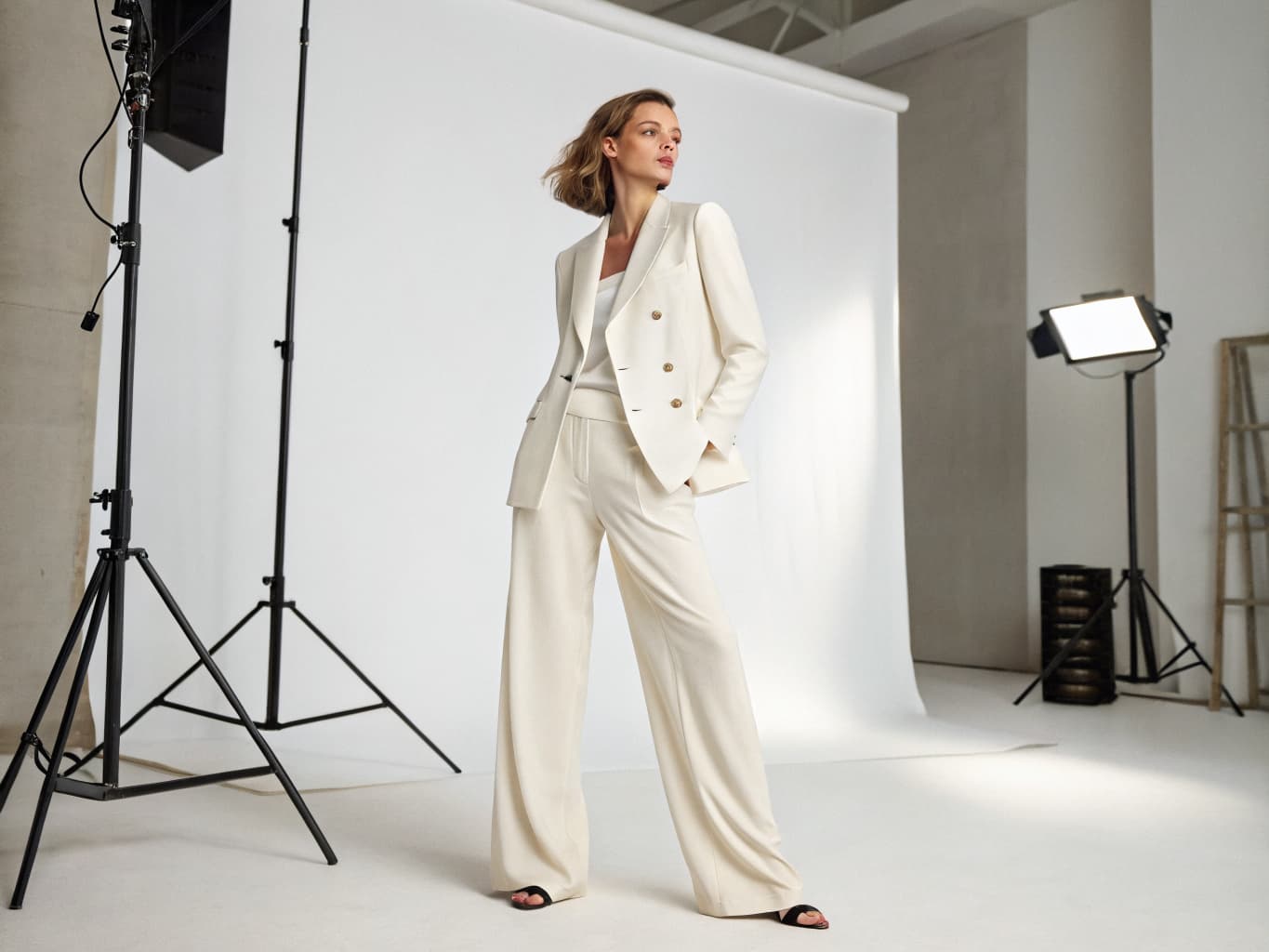
What does it cost to add AI clothing try-on to a Shopify store?
| Line item | Traditional photoshoot | With Alovia | Source |
|---|---|---|---|
| Full-service agency product photography, per image | $100–$300+ | 5–20 credits, 1K to 4K | |
| Photographer, per day | $1,500–$4,000 | Not required | |
| Model, per day | $500–$2,000 | Not required | |
| Turnaround to edited delivery | 5–10 business days | Minutes | |
| Cost per look | Billed by the day, not per look | 10 credits, about $1.00 per look | |
| What you pay monthly | Not a subscription | $49.99 Starter · $149.99 Pro |
What do you need to add AI clothing try-on to a Shopify store?
Not a Shopify App — a one-time Liquid snippet
This installs as a single script tag pasted into your Shopify theme, not a Shopify App Store listing you install and authorize. Paste it once into sections/main-product.liquid and every product page automatically gets the floating try-on button, pulling the product image and type straight from Shopify's own Liquid variables.
Product type mapped to Alovia categories
product.featured_image and product.type | handleize feed the widget's data-product-image and data-product-category attributes directly. Map your Shopify product types to top, bottom, shoes, or accessory once, and every matching product inherits the right outfit slot automatically.
The shopper's own photo, not a stock model
Shoppers tap the floating button, upload or photograph themselves, and see the exact product on their own body in about 20 seconds — the same generation engine behind /products/virtual-try-on, but driven by the shopper's photo instead of a library model.
Separate from Alovia's Shopify photo-export connection
This is not the same as /integrations/shopify, which pushes AI-generated catalog photography into your Shopify Files library so you have product images at all. This widget lets a shopper try an existing product photo on themselves before buying — the two don't overlap.
Domain-restricted and on-brand
Whitelist your Shopify domain (wildcard subdomains like *.myshopify.com supported) so the widget only runs on your storefront, toggle the "Powered by Alovia" badge off, and set a custom logo and accent color to match your theme.
Credits, not a Shopify app subscription
Each try-on costs 10 credits, deducted from your Alovia account rather than billed as a separate Shopify app subscription. A new widget key also ships with a 3-tries-per-shopper-session cap by default, which you can raise or remove from the dashboard.
How do you add AI clothing try-on to a Shopify store?
1. Create a widget API key
From your Alovia dashboard's Virtual Try-On Widget tab, generate an API key (format alv_pk_...) — this is what the Liquid snippet authenticates every request with.
2. Paste the Liquid snippet into your theme
In Shopify Admin, go to Online Store → Themes → Edit code, open sections/main-product.liquid, and paste the script tag at the bottom — it reads product.featured_image, product.type, and product.title automatically, no per-product setup.
3. Map product types to top, bottom, shoes, or accessory
Set your Shopify product types (or handleize output) to match Alovia's four categories so items land in the right outfit slot; anything unmapped falls back to top.
4. Publish, test, and tune
Save the theme, open a live product page, and tap Try It On to confirm a shopper photo generates a result in about 20 seconds. Then optionally whitelist your domain and adjust tries-per-session from the widget settings tab.
Questions about how to add AI clothing try-on to a Shopify store
Is this a Shopify App Store app?
No. It is a Liquid theme snippet you paste once into sections/main-product.liquid — there is no listing to install, review, or authorize in the Shopify App Store, and no OAuth connection to your store.
Does it push try-on results back into Shopify?
No. Results are shown to the shopper in the widget panel and can be downloaded by them; nothing is written back into your Shopify product, order, or file data. Alovia's separate Shopify connection (/integrations/shopify) is the one that pushes AI-generated photography into your Shopify Files library — this widget doesn't touch that library.
Which theme file do I edit?
sections/main-product.liquid, which every Online Store 2.0 theme uses for the product page. If your theme predates Online Store 2.0 and doesn't have that file, you'll need to find its equivalent product-template section and paste the snippet there instead.
How do I map my Shopify product types to Alovia's categories?
product.type | handleize feeds the widget's data-product-category attribute directly — set your product types to top, bottom, shoes, or accessory (or close variants) so items land in the right outfit slot; anything unmapped defaults to top.
What does the shopper actually do?
They tap the floating "Try It On" button, upload or photograph their own photo, and see themselves wearing the exact product in about 20 seconds — no account required unless you turn on require_login.
How much does each try-on cost, and who pays for it?
10 credits per generation, deducted from your Alovia account — not the shopper's. If your account runs out of credits, new requests are declined until you add more.
Can I restrict the widget to just my Shopify domain?
Yes — whitelist your domain (wildcard subdomains like *.myshopify.com are supported) in the API key's settings; requests from any other origin are rejected.
Does this replace Alovia's other Shopify integration?
No, they solve different jobs. /integrations/shopify pushes AI-generated catalog photography into your Shopify Files library so you have product images at all; this widget lets a shopper try an existing product photo on themselves before buying.
Do I need a developer to install it?
You need access to your Shopify theme's code editor (Online Store → Themes → Edit code) to paste one script tag — no build step or package install, but it is a code edit, not a one-click app toggle.
Ready to add AI clothing try-on to a Shopify store?
Turn your products into buyer-ready catalogs — no photoshoot required.
Sources
- ProShot Media — Full-service agency product photography, per image ($100–$300+). Source dated 2025-08-28.
- Baymard Institute — Apparel benchmark sites with no human-model image, or only one (21%). Source dated 2025-02-25.
Last updated: