Solution
Turn your Shopify product photos into on-model imagery
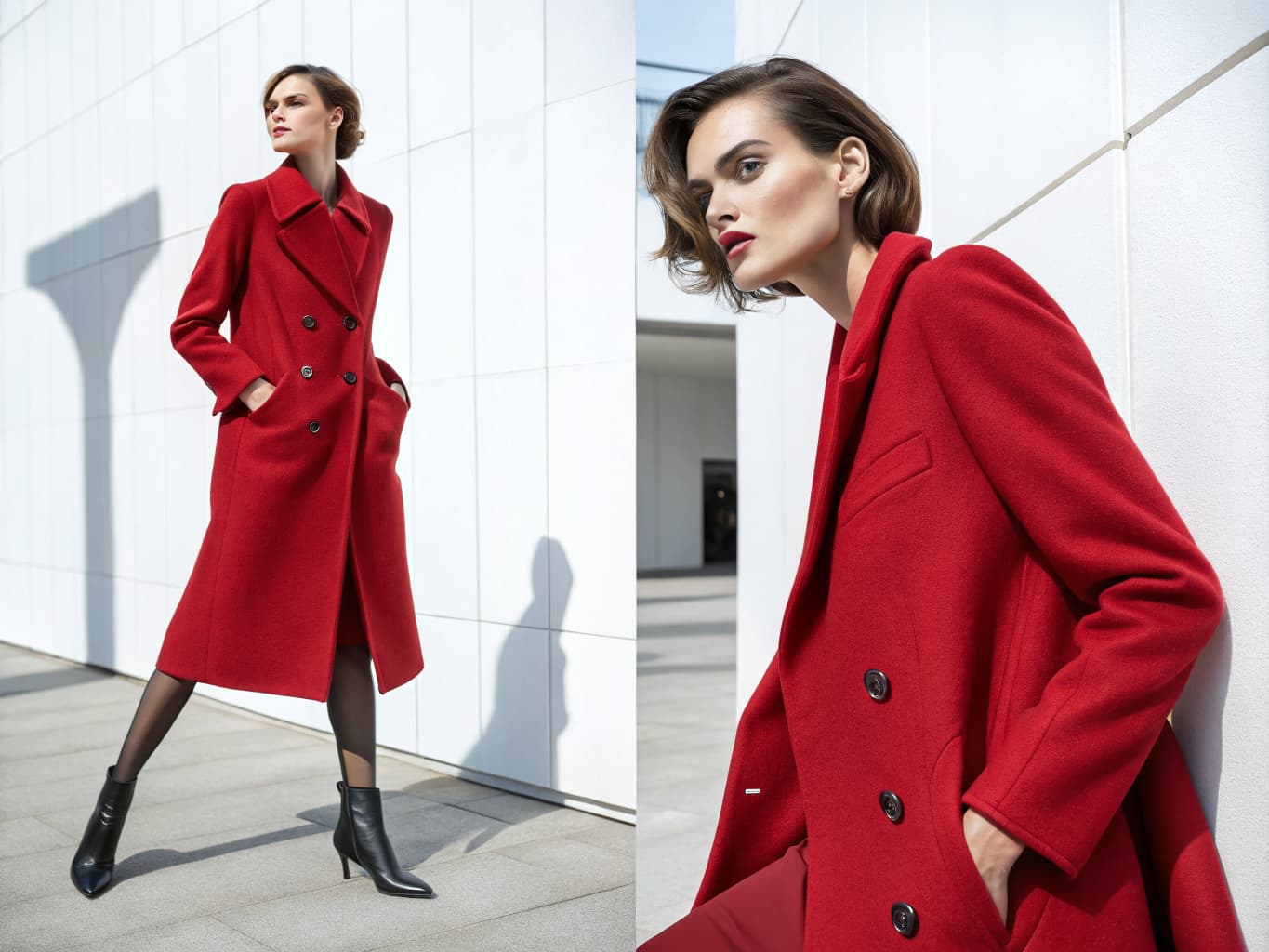
To create AI fashion images for a Shopify store, connect Shopify to Alovia, pull in an existing product image, and generate on-model photography with AI Fashion Models. Push the finished image into your Shopify Files library with alt text, then attach it to a listing from Shopify admin, or build a full catalog with Catalog Generator.
To create AI fashion images for a Shopify store, connect Shopify to Alovia, pull in an existing product image, and generate on-model photography with AI Fashion Models. Push the finished image into your Shopify Files library with alt text, then attach it to a listing from Shopify admin, or build a full catalog with Catalog Generator.
What you get when you create AI fashion images for a Shopify store
What does it cost to create AI fashion images for a Shopify store?
| Line item | Traditional photoshoot | With Alovia | Source |
|---|---|---|---|
| Full-service agency product photography, per image | $100–$300+ | 5–20 credits, 1K to 4K | |
| Photographer, per day | $1,500–$4,000 | Not required | |
| Model, per day | $500–$2,000 | Not required | |
| Turnaround to edited delivery | 5–10 business days | Minutes | |
| Cost per look | Billed by the day, not per look | 10 credits, about $1.00 per look | |
| What you pay monthly | Not a subscription | $49.99 Starter · $149.99 Pro |
What do you need to create AI fashion images for a Shopify store?
Import products straight from Shopify
Alovia pulls your Shopify products on demand — title and images — into a picker, so you generate from a product you already have listed instead of re-uploading it.
On-model photography per product
AI Fashion Models (/products/ai-fashion-models) generates a photorealistic on-model image from the imported product photo — no photographer or studio required.
Push finished images back to Shopify
Send a generated image into your store's Files library with alt text already attached, ready to add to a product listing from Shopify admin.
Build a full catalog, not just one image
Catalog Generator (/products/catalog-generator) arranges generated photography for every product into a branded layout and exports a PDF or shareable flipbook link.
Guided setup, screenshot by screenshot
Create a custom app in Shopify's Dev Dashboard and paste your shop domain, Client ID, and Client Secret into Alovia (/integrations/shopify) — a step-by-step in-app guide with screenshots walks through every field.
Social crops for every product
Export the same generated images pre-cropped for Instagram, Facebook, and TikTok alongside the Shopify Files upload.
How do you create AI fashion images for a Shopify store?
1. Connect your Shopify store
Create a custom app in Shopify's Dev Dashboard, grant the product and file scopes, then paste your shop domain, Client ID, and Client Secret into Alovia's integrations panel — Alovia's in-app guide walks through each step with screenshots.
2. Import a product and generate
Pick a product from the Shopify picker and generate on-model photography from its existing image with AI Fashion Models.
3. Push the image to Shopify and attach it
Export the finished image into your store's Files library with alt text, then attach it to the product listing from Shopify admin.
What do brands who create AI fashion images for a Shopify store say?
“Shooting hundreds of items on models was financially impossible for us. With Alovia, we automated the whole process using our basic product shots. Our entire 500-SKU catalog now has consistent, professional model photography. Conversion rates jumped 42% in the first month alone. It's a very practical tool that directly impacts the bottom line.”

Jake Peterson
E-commerce Store Owner, STYLE DIRECT
“Scaling digital campaigns across international markets used to mean juggling endless photoshoots, waiting weeks for post-production, and struggling to coordinate seasonal line sheets with our wholesale partners. With Alovia, that bottleneck is completely gone. We now generate hyper-realistic, diverse lookbook visuals and structured B2B linesheets aligned directly with our e-commerce sales calendar—all in a matter of minutes. It has eliminated the massive traditional studio expenses, slashed our time-to-market, and allowed us to deliver a seamless, high-end visual experience that keeps our digital commerce operations agile and ahead of the curve.”

Chloe Taylor
Head of Digital Commerce
Questions about how to create AI fashion images for a Shopify store
Does Alovia install as a Shopify app?
Not as a one-click app-store install. You create a custom app in Shopify's Dev Dashboard, grant the product and file scopes, and paste the shop domain, Client ID, and Client Secret into Alovia (/integrations/shopify) — a step-by-step in-app guide with screenshots walks through the setup, and credentials are stored encrypted.
Does Alovia sync my whole Shopify catalog automatically?
No — Alovia pulls your Shopify products on demand into a picker showing each product's title and images, and you choose which one to generate from. It doesn't sync variants or collections in the background.
Does the generated image get added straight to my product page?
Not automatically. A generated image is pushed into your Shopify store's Files library with alt text; you then attach it to the product from Shopify admin.
Can I build a full catalog for my Shopify store, not just single images?
Yes — Catalog Generator (/products/catalog-generator) arranges generated photography for every product into a branded catalog, then exports it as a PDF or a shareable flipbook link.
How many products does the Shopify picker show at once?
Up to 20 products by default in a single pull. It reads title and images on demand rather than syncing your whole catalog in the background.
Do I have to reconnect my Shopify store every time I generate?
No. Once connected, the access token refreshes itself automatically — Alovia checks it against a 5-minute expiry buffer and requests a new one behind the scenes, so you don't see a reconnect prompt on normal use.
What format and size limits apply when I pull an existing photo in from Shopify?
JPG, PNG, WEBP, or GIF, capped at 10MB. This is specifically for pulling a photo you already have listed on Shopify in as your starting flat lay — new uploads from your own device follow the same JPG/PNG/WebP rule used elsewhere on Alovia.
Can Alovia's Shopify connection see my store's orders or customers?
No. The custom app you create only grants four scopes — read_products, write_products, read_files, and write_files — so Alovia can read product images and write generated files, and nothing else in your store.
Ready to create AI fashion images for a Shopify store?
Turn your products into buyer-ready catalogs — no photoshoot required.
Sources
- Baymard Institute — Apparel benchmark sites with no human-model image, or only one (21%). Source dated 2025-02-25.
- National Retail Federation — US online sales returned in 2025 (19.3%). Source dated 2025-10-15.
Last updated: